Chaos Front Steam Deck Optimization
Getting the most from Deck Verified without fighting the UI.
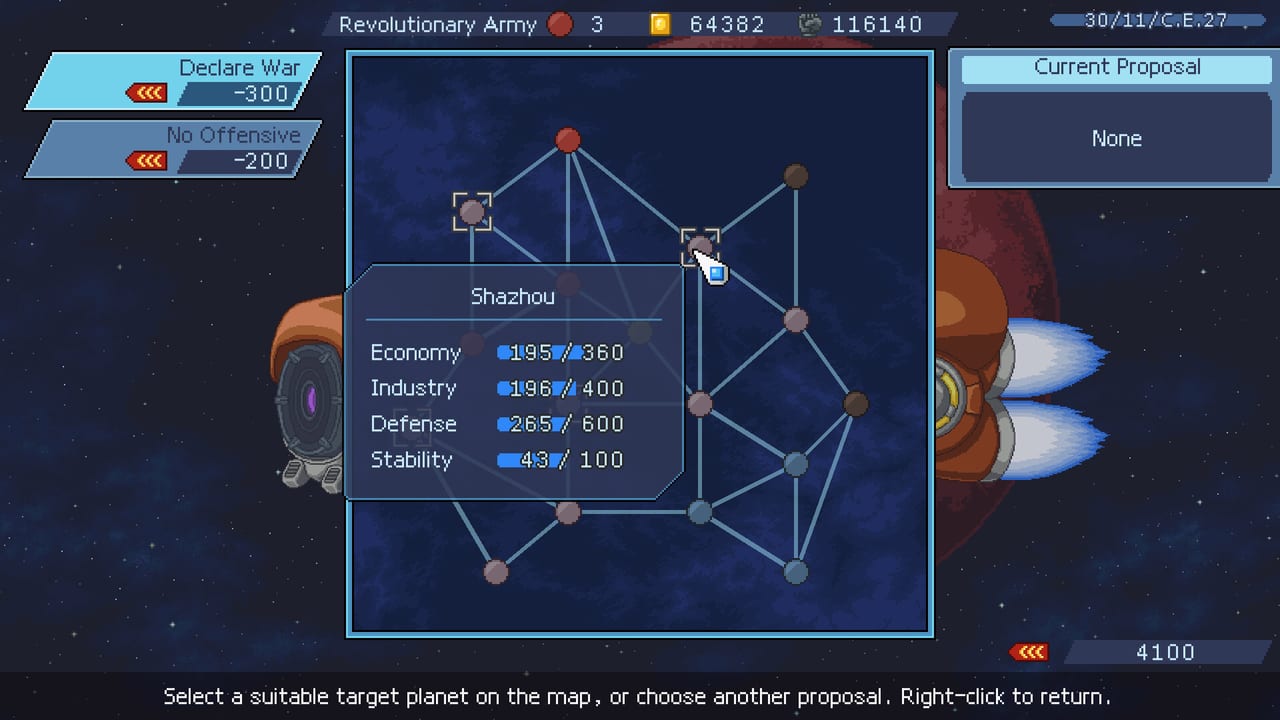
Chaos Front carries the Steam Deck Verified badge. That means the developers tested it, the basic features work, and Proton is happy. It does not mean the UI was redesigned for a seven-inch screen. This page covers what actually works well on Deck, what needs tweaking, and how to handle the density that Deck Verified tolerates but does not celebrate.
What Deck Verified Actually Means
The badge confirms:
- The game launches on Steam Deck without workarounds
- Basic functionality is stable
- Cloud saves work with Steam
- No fundamental compatibility blockers
What it does not guarantee:
- Comfortable reading on a small screen
- Optimal control mapping for every menu
- Perfect battery life
- UI element sizes that feel native on Deck
The September development log acknowledged UI density as a launch-week pain point specifically for Deck users. The team addressed some issues in the 72-hour patches. Some UI elements remain dense by design.
Recommended Display Settings
On Deck’s 1280 x 800 screen, Chaos Front looks sharpest with these Proton settings:
- Render resolution: 1280 x 800 (native)
- Integer scaling: On (prevents blurring)
- Anti-aliasing: FXAA or off (saves battery, game is not texture-heavy)
- Vsync: On (prevents screen tearing on OLED Deck)
The game is turn-based, so high frame rates are not necessary. 30 Hz is perfectly playable. 60 Hz uses more battery without meaningful visual improvement for this title.
Control Mapping
Chaos Front has full controller support. The default mapping works, but these tweaks improve the Deck experience:
Left trackpad: Pan the campaign map. More precise than joystick for node selection.
Right trackpad: Scroll menus and lists. The UI is dense; this saves thumb wear.
Left trigger (L2): Zoom out on the tactical map. Useful for seeing ram trajectories.
Right trigger (R2): End Turn. Place it where your index finger naturally rests.
D-pad: Navigate between units in the roster. Faster than clicking portraits.
The game supports simultaneous keyboard and mouse with controller. You can plug a mouse into the Deck USB-C for detailed clicks, then switch to controller for combat. That hybrid workflow works; do not feel forced to choose one input exclusively.
UI Density Workarounds
The most common Deck complaint is text size and button spacing in menus. Solutions that work:
Increase system font size: Deck’s Steam OS settings allow global UI scaling. Bump to 100 percent or 110 percent before launching.
Use Quick Access Menu: If a menu is unreadable, open Steam’s Quick Access Menu (Steam button) and adjust the on-screen keyboard or external keyboard settings. Some users connect a Bluetooth keyboard for the dense screens like Faction Data.
Play in Desktop Mode: For the first hour of setup and roster management, Desktop Mode on Deck gives you mouse precision and readable menus. You can return to Game Mode for actual combat.
Battery Life
Chaos Front is not a battery hog. Expect these ranges:
- Performance mode (40 Hz cap): 3.5 to 4.5 hours
- Balanced mode (60 Hz cap): 2.5 to 3.5 hours
- OLED high performance: 2 to 3 hours
Turn down screen brightness to 60-70 percent. The game is turn-based with static screens during planning; you do not need full brightness.
Disable Wi-Fi during dedicated play sessions if you do not need Steam cloud saves mid-session. This adds roughly 30 minutes of battery.
Cloud Saves
The game uses Steam cloud saves. This means:
- Progress syncs when you open Steam on any device
- Quitting to Game Mode from a mid-session autosave works correctly
- If cloud and local saves conflict, Steam keeps both versions
Always use the in-game Quick Save before closing. The game autosaves on quit, but a manual Quick Save before closing ensures the latest tactical decision is captured.
Known Deck-Specific Issues
UI overflow in Faction Data: The Faction Data Menu can push elements off-screen on Deck’s resolution. This is a known issue acknowledged in community feedback. Workaround: use a connected mouse or play in Desktop Mode for this specific screen.
Sortie confusion: The demo and early retail confusion about Sortie persists on Deck because the tooltip is small. The controls guide has a dedicated section on this; read it before your first sortie on Deck.
Touchscreen: The game does not have native touchscreen support for menus. You must use trackpad or controller for all menu navigation.
A Deck-First Play Sequence
- Confirm Deck Verified badge in Steam store before buying.
- Set render resolution to native, integer scaling on.
- Map right trackpad to menu scroll.
- Read the controls guide before the first sortie.
- Quick Save before every proposal screen.
- Play in Game Mode for combat, Desktop Mode for heavy roster management.
- Target 60-70 percent brightness.
- Use Performance mode for battery efficiency; switch to Balanced if combat feels sluggish.
Chaos Front is verified and playable. The UI density is real but manageable with these tweaks. The turn-based loop is well-suited to portable play; short sessions of fifteen to thirty minutes are perfectly natural for this game.
Frequently Asked Questions
Quick answers drawn from the launch build and official notes.
Does Chaos Front run well on Steam Deck?
Yes. It carries the Deck Verified badge and runs without workarounds. Some UI elements are dense by design, which the community has flagged and the team acknowledged in launch-week patches.
Can I use keyboard and mouse with controller on Deck?
Yes. The game supports simultaneous inputs. You can plug a USB-C mouse into Deck for menus and use controller for combat. That hybrid workflow is supported.
Why is the Faction Data Menu hard to read on Deck?
The dense UI is a known issue. Use Desktop Mode for that screen, or connect a Bluetooth mouse. The team acknowledged UI density as a launch-week pain point in the September log.
How long does the battery last?
Expect 3.5 to 4.5 hours in Performance mode, 2.5 to 3.5 in Balanced. Lower brightness to 60-70 percent and disable Wi-Fi for extra battery. The game is turn-based and does not demand high frame rates.